


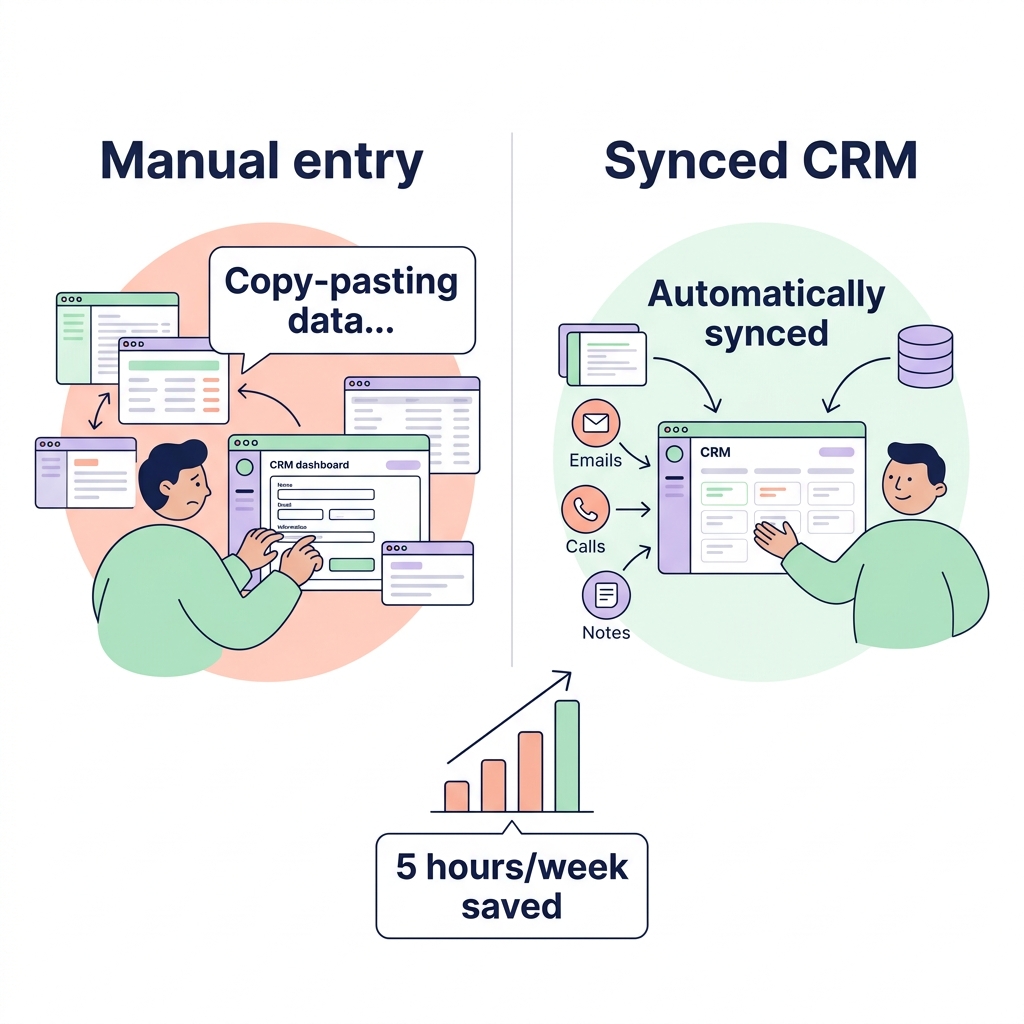
Is your sales team spending more time on data entry than on closing deals? Manual tab-switching and data entry can waste nearly five hours every week per rep. Connecting LinkedIn Sales Navigator to your CRM turns your database into a living engine for growth.
Licensing and prerequisites
Before you begin the technical setup, you must ensure your organization has the correct subscription levels. Native integration is a premium feature that requires specific licenses to function. Most official connectors require a LinkedIn Sales Navigator Advanced Plus license, which typically starts around $115 per user each month.
Your CRM edition also matters. For those using Salesforce, you generally need the Enterprise or Unlimited editions to access full automation features like automatic contact creation. If you are operating on Microsoft Dynamics 365, the integration requires either the Sales Enterprise license or the Microsoft Relationship Sales bundle. These prerequisites ensure your system has the necessary API access to handle bidirectional data flows. You will also need administrative privileges in both LinkedIn and your CRM to authorize the initial handshake and configure data permissions.
Setting up major CRM integrations
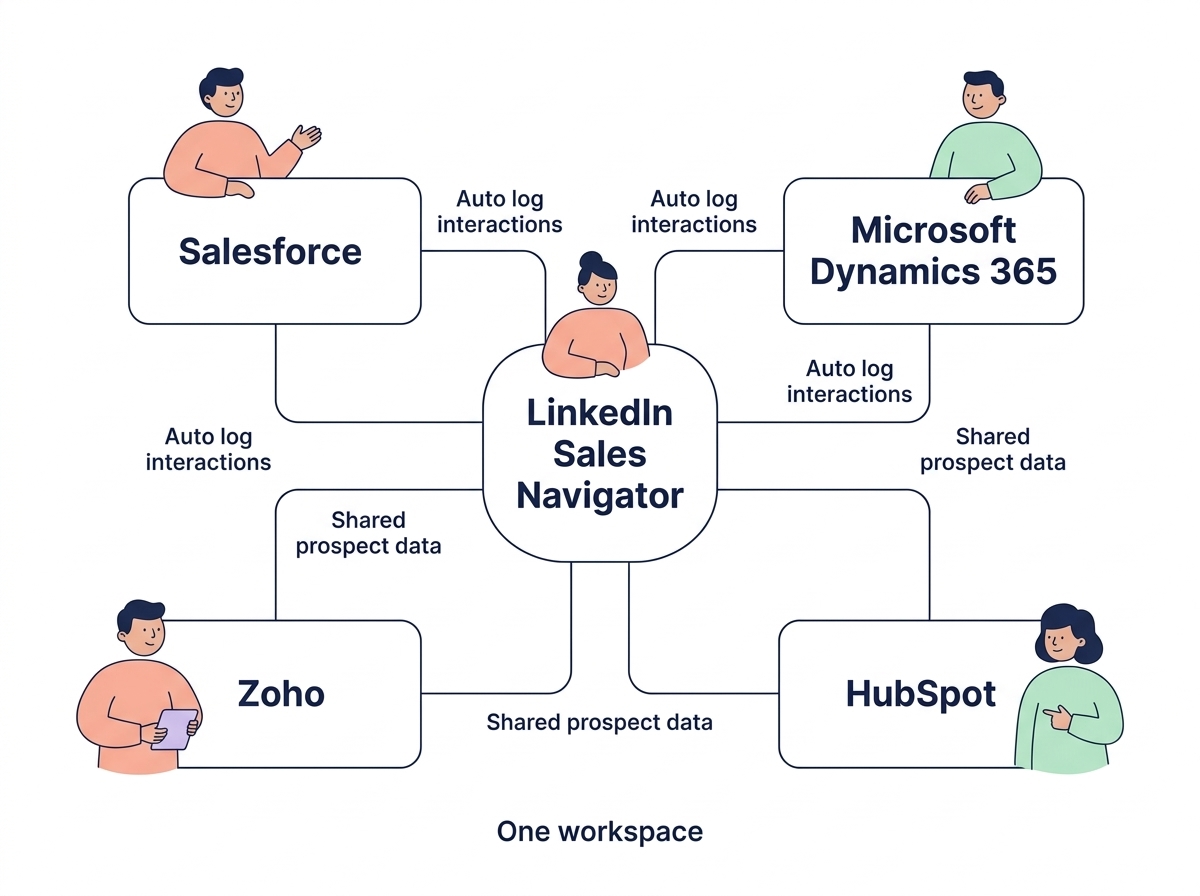
Connecting these platforms allows you to log interactions automatically and view LinkedIn intelligence without leaving your primary workspace. While the specific menus differ, the core goal is to enable a LinkedIn CRM integration that keeps your records current.
Salesforce
To begin the LinkedIn Sales Navigator for Salesforce setup, your administrator should install the official package from the AppExchange. Once installed, you must navigate to the Sales Navigator Admin settings to enable the integration and toggle on “Activity Writeback.” This feature ensures that every InMail and connection request is logged as a task in Salesforce. Finally, you should add Sales Navigator components to your Lead and Contact page layouts so your team can see prospect icebreakers and recent activity directly in the CRM.
Microsoft Dynamics 365
The LinkedIn Sales Navigator CRM integration for Dynamics 365 is managed through the Advanced Settings menu. After enabling the LinkedIn controls, you should configure the CRM Sync in the Sales Navigator Admin portal. This allows you to map specific entities such as Accounts, Contacts, and Leads. For manufacturing firms with long sales cycles, this setup is particularly valuable as it allows you to track complex account hierarchies and relationship patterns within a single interface.
Zoho and HubSpot
For teams using other platforms, the setup often involves marketplace extensions. The LinkedIn Sales Navigator for Zoho integration is known to reduce manual data entry by 30% to 50% by allowing one-click lead exports. HubSpot users can find the connector in the App Marketplace, which enables the syncing of contact and company data. These integrations provide embedded widgets that show a prospect’s full LinkedIn profile, helping your reps personalize their outreach without digging through multiple browser tabs.
Data validation and field mapping
Once the connection is live, the focus shifts to maintaining data quality. A bidirectional sync ensures that when a prospect changes their job title on LinkedIn, that information flows back to your CRM. This is facilitated by data validation in Sales Navigator, which flags outdated records and helps you identify when a former champion moves to a new target account.
Successful data flow depends on precise CRM field mapping. You should ensure that field types match exactly, such as mapping text fields on LinkedIn to text fields in your CRM, to prevent sync failures. Common mapping priorities include:
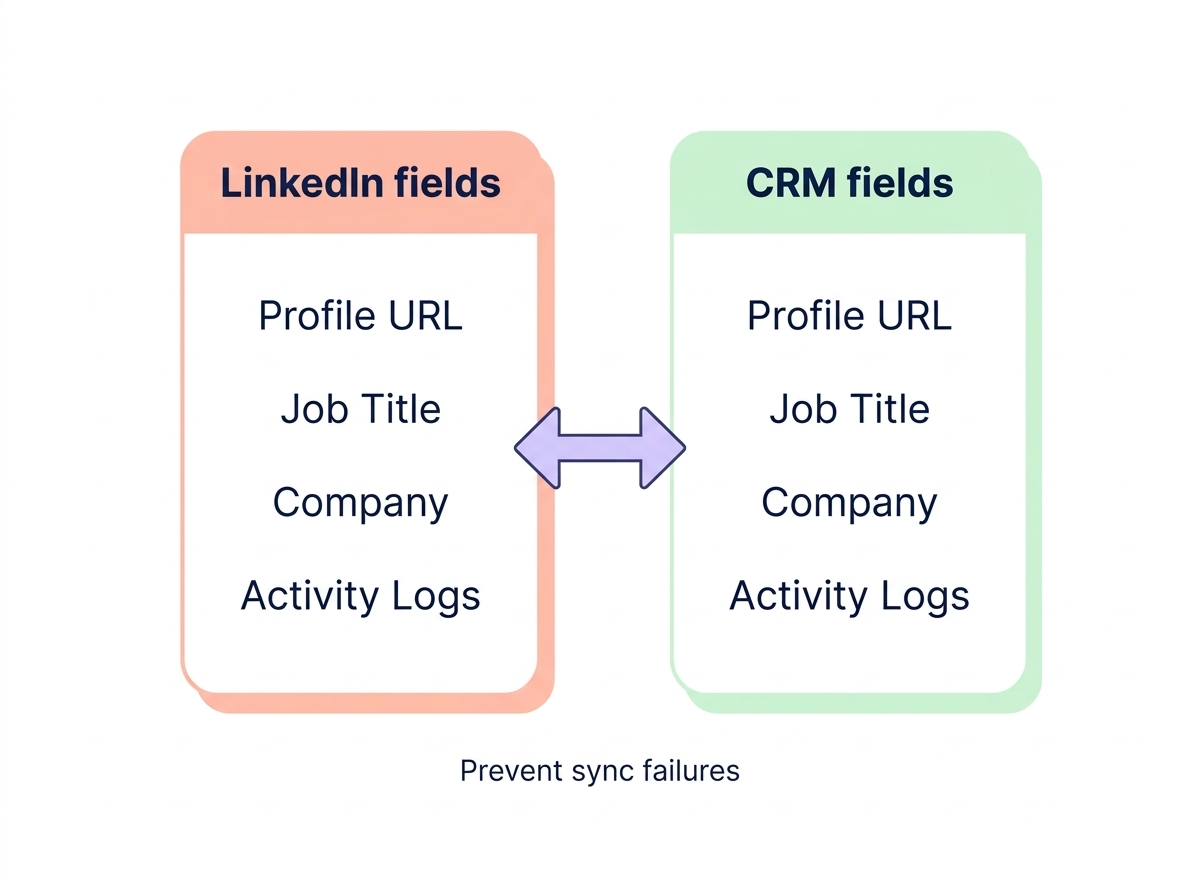
- LinkedIn Profile URLs to prevent duplicate record creation.
- Current Job Title and Company to track career movements.
- Activity logs for InMails and messages to maintain a complete engagement history.
Troubleshooting common issues
Even with a professional setup, technical friction can occur. The most frequent issue is a licensing mismatch where a rep has a basic Sales Navigator seat that does not support CRM writeback. If the sync stops unexpectedly, the first step is usually to check if the OAuth authentication token has expired, which requires an admin to re-authenticate the connection.
Field mismatches often cause sync delays or errors. If a picklist in your CRM does not match the data being sent from LinkedIn, the sync may fail for that specific record. It is also worth noting that some platforms, like Pipedrive, do not have a native sync and may require third-party middleware to function. If you encounter errors like “Subscription not supported,” verify that you are on the Advanced Plus tier and that the Pipedrive LinkedIn Sales Navigator setup has been correctly authorized by a Super Admin.
Scaling with AI automation
A synced CRM provides the data foundation needed for high-performance outreach. When your LinkedIn insights are correctly mapped, you can move beyond manual prospecting and use advanced tools to accelerate your pipeline. Sera’s AI Autopilot uses this synced data to find the right decision-makers and write human-like outreach that drives real connections.
Our specialized AI agents, including the Enrichment Engine and Research Analyst, scan your CRM and LinkedIn data to identify perfect timing for your outreach. This ensures that your team focuses only on high-potential leads while the AI handles the research and initial messaging. By combining a synced CRM with Sera’s intelligent automation, you can eliminate manual drudgery and transform your sales workflow into a revenue-generating machine.
Book a demo with Sera today to see how our AI-driven outreach can supercharge your integrated sales workflow.