


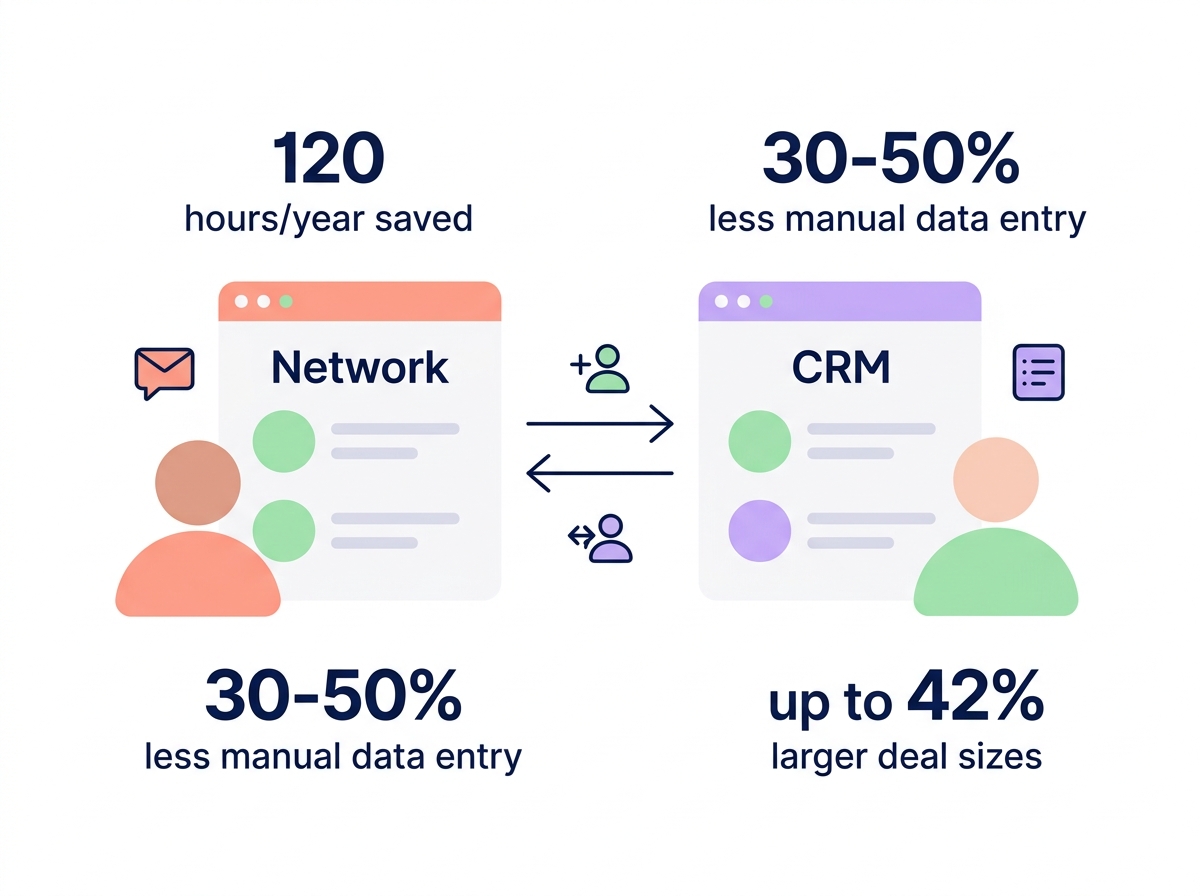
Are your sales reps losing 120 hours every year to manual data entry? Integrating LinkedIn Sales Navigator with Salesforce creates a live bridge between your prospect insights and your CRM, allowing your team to focus on closing high-value deals rather than copying contact names.
By automating these workflows, manufacturing firms typically see manual data entry reduced by 30-50% and can increase average deal sizes by up to 42%. This connection ensures that every interaction – from an InMail to a connection request – is logged instantly, providing a unified view of your customer journey.
Choosing the right integration method
Before beginning the installation, you must determine which method aligns with your existing LinkedIn CRM integration goals. For most established manufacturing teams, the native integration via the Salesforce AppExchange is the standard choice. As of May 2025, version 3.64 of the managed package provides the most stable bidirectional flow and allows you to embed LinkedIn profiles directly onto your lead and contact pages.
Native integration requires specific licensing, typically demanding a LinkedIn Sales Navigator Advanced Plus plan and a Salesforce Enterprise or Unlimited edition. While third-party middleware tools exist for lower-tier plans, they often lack the deep prospect insights integration required to surface real-time account intelligence within your CRM dashboard.
Requirements and licensing for a successful sync
Successful implementation depends on having the correct permissions and administrative access on both platforms. You will need a System Administrator role in Salesforce and Admin access in Sales Navigator to authorize the initial handshake.
- Verify that your Salesforce edition supports API access, which is standard for Enterprise and Unlimited tiers but may require extra configuration for Professional editions.
- Confirm your LinkedIn subscription is at the Advanced Plus level to unlock full bidirectional sync and activity writeback features.
- Assign the specific LinkedIn Sales Navigator permission set to every sales representative who needs to access the embedded components.
Setting up the Salesforce native integration
The setup process begins at the Salesforce AppExchange, where you install the LinkedIn Sales Navigator for Salesforce package. Once installed, navigate to your Salesforce Setup menu to locate the LinkedIn Sales Navigator Settings. Toggling this to the active position initiates the configuration of OAuth authentication, which ensures a secure, encrypted connection between the two systems.
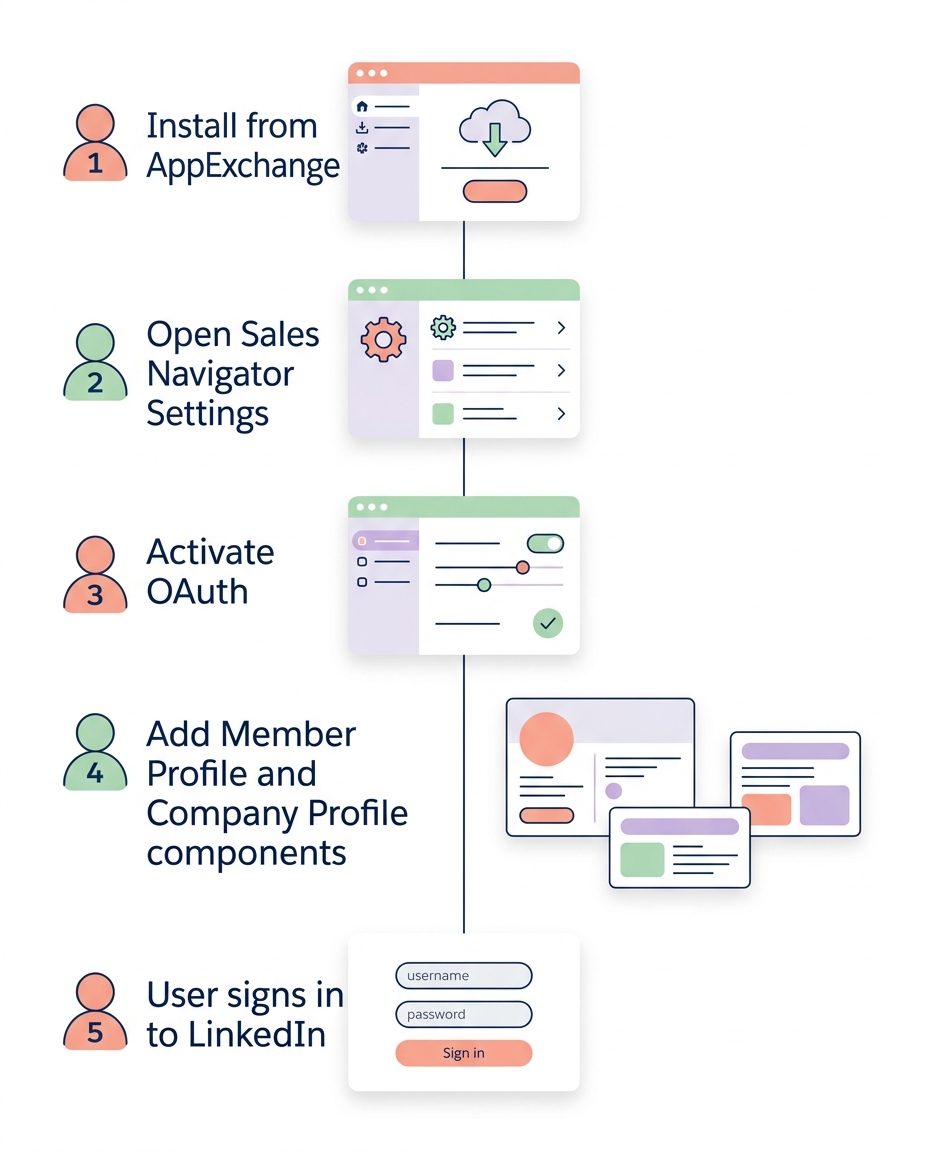
After the back-end connection is established, you must update your user interface to make the data visible. This involves editing your Lead, Contact, Account, and Opportunity page layouts to include LinkedIn-specific components. Dragging the Member Profile and Company Profile components onto the record pages allows your reps to view icebreakers and mutual connections without leaving the CRM. Finally, each individual user must sign in to LinkedIn through Salesforce to link their specific seat to their profile.
Streamlining workflows with activity writeback
The most significant efficiency gain from a LinkedIn CRM sync is the automatic logging of outreach activities. When active, the “Activity Writeback” feature records InMails, connection requests, and profile views as Salesforce tasks. This centralized history is vital for accurate win-loss analysis and helps management identify which engagement patterns lead to successful contracts.
For manufacturers dealing with long sales cycles and multiple stakeholders, this visibility prevents duplicate outreach and ensures that every member of the GTM team knows exactly where a prospect stands. It transforms the Salesforce lead generation process from a manual tracking exercise into a data-driven strategy.
Maintaining CRM hygiene with data validation
Manufacturing sectors often see frequent role changes and company moves. Using the data validation in Sales Navigator feature helps keep your CRM records current by flagging when a contact changes their title or company on LinkedIn. These job change alerts are critical, as prospects are often more receptive to new solutions within the first 90 days of a new role.
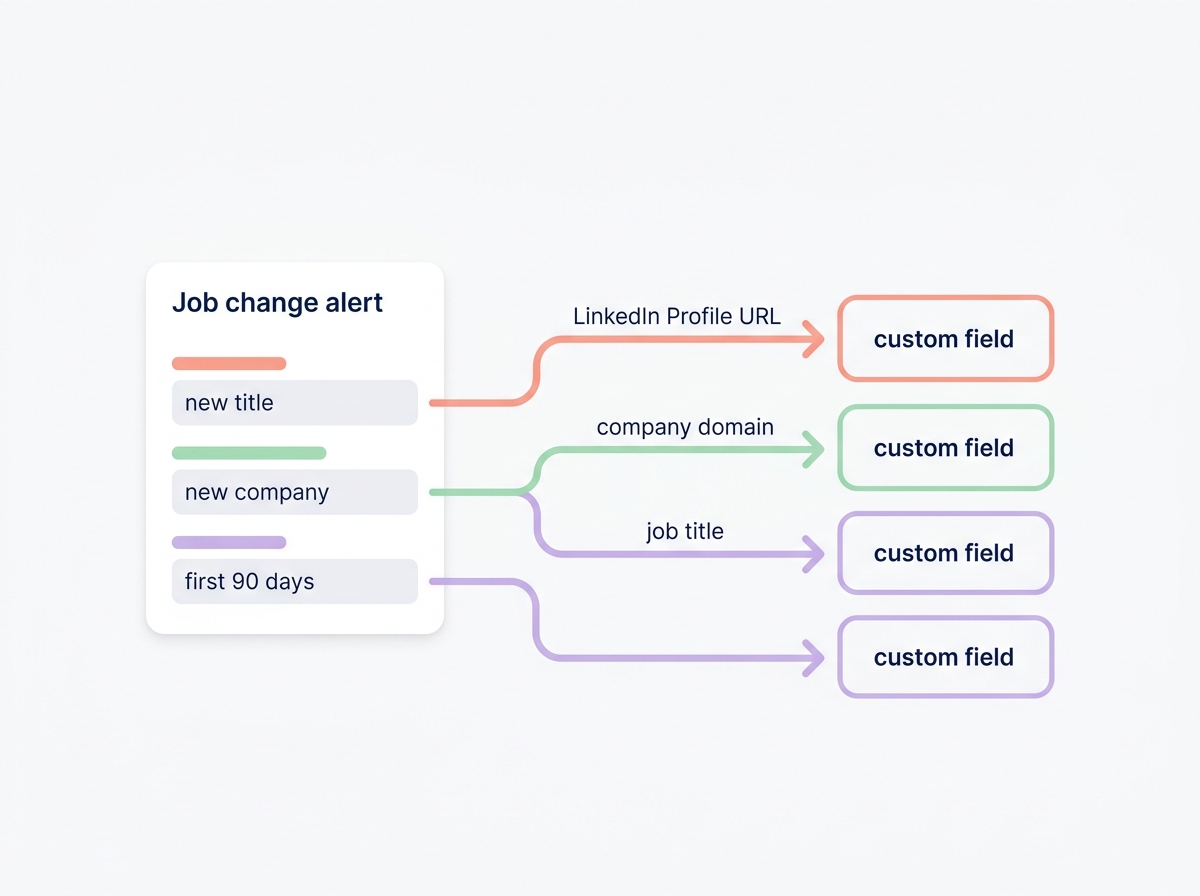
To maintain a clean database, you must also prioritize CRM field mapping for manufacturers. Ensuring that LinkedIn Profile URLs, company domains, and job titles map precisely to your Salesforce custom fields prevents the creation of duplicate records and ensures your firmographic data remains accurate for reporting.
Troubleshooting common connection issues
Even with a stable LinkedIn Sales Navigator CRM setup, you may encounter technical hurdles related to authentication or permissions.
- OAuth Token Expiry: Connection tokens can expire for security reasons. If the sync stops, an administrator should re-authenticate the connection within the Salesforce settings menu.
- Permission Set Misses: If reps cannot see the LinkedIn components on their screens, verify that the LinkedIn Sales Navigator permission set has been explicitly assigned to their user profile.
- API Limits: If you are using a Salesforce edition with restricted API calls, monitor your usage to ensure that frequent data syncing does not hit daily limits.
Integrating your CRM with LinkedIn is a major step in optimizing your sales workflows. However, while a sync keeps your data accurate, your team still has to handle the research and writing that goes into every message.
Sera takes this productivity a step further by putting your B2B outreach on Autopilot. Our six specialized AI agents handle everything from building targeted lead lists and enriching profiles to writing personalized, multilingual emails that land in decision-makers’ inboxes. By automating the heavy lifting, you can move away from manual prospecting and focus on the qualified meetings appearing in your calendar.
Discover how AI-powered global sales automation can transform your manufacturing outreach at seraleads.com.